
Template:Wikiqsg esim bootstrap guide: Difference between revisions
No edit summary |
|||
| (72 intermediate revisions by the same user not shown) | |||
| Line 1: | Line 1: | ||
== | == Information == | ||
The device includes a preinstalled 10 MB Bootstrap eSIM profile with limited connectivity sufficient for downloading your provider’s eSIM profile and not for general Internet use. | The device with eSIM ordering code includes a preinstalled '''10 MB Bootstrap eSIM profile''' with limited connectivity sufficient for downloading your provider’s eSIM profile and not for general Internet use. | ||
ℹ️ To learn about Bootstrap, read the [[https://wiki.teltonika-networks.com/view/Bootstrap_guide_for_eSIM|eSIM Bootstrap guide]]. For advanced eSIM setup, see the [[https://wiki.teltonika-networks.com/view/RUT241_eSIM|RUT241 eSIM configuration page]]. For RMS-specific steps, follow [[How_to_configure_eSIM_profiles_in_RMS%3F|How to configure eSIM profiles in RMS]]. | |||
== Device operations with eSIM Bootstrap == | |||
* On first start, the device runs normally — eSIM Bootstrap profile is inactive. Device automatically switches to eSIM Bootstrap profile after 1 hour. | |||
* To start immediately, set default SIM to eSIM, and that will set eSIM Bootstrap profile as the primary SIM. | |||
* When eSIM Bootstrap profile is active, mobile service becomes available. Download your full eSIM profile within 15 minutes; afterwards, Bootstrap profile will disable itself to conserve data. | |||
* After the new eSIM profile is downloaded, the temporary Bootstrap eSIM profile, and all related configurations are removed, and the new eSIM becomes the primary SIM. | |||
'''Note:''' ''The Bootstrap profile is valid for 1 year from the device’s manufacturing date; after it expires, activate the eSIM via the default procedure using Internet connection from other sources.'' | |||
=Bootstrap - eSIM Setup Guide= | |||
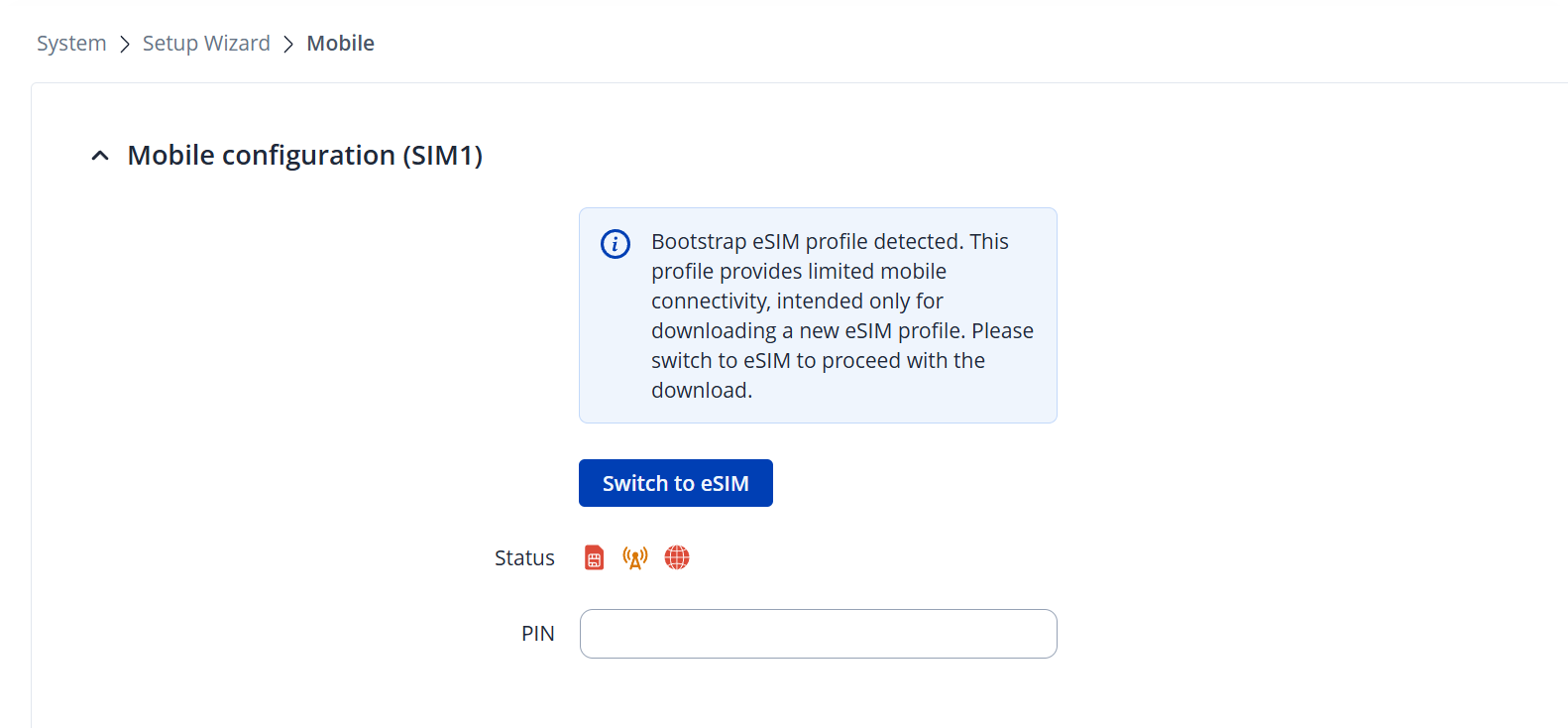
After logging into device WebUI for the first time, you will be greeted by a Setup Wizard. On the third step of Mobile, you will get a notification about bootstrap eSIM profile being detected. | |||
If you skipped the Setup Wizard, you navigate to '''1. System → 2. Setup Wizard → 3. Mobile'''. | |||
== Setup Wizard == | |||
<br> | |||
'''Step 1''' - Click '''Switch to eSIM''' button – to set default SIM to eSIM and to start the process <br> | |||
[[File:Bootstrap eSIM Guide Networks 1 v1.png|center|1100 px|link=Special:FilePath/Bootstrap eSIM Guide Networks 1 v1.png]] | |||
<br> | |||
'''Step 2''' - You will receive a confirmation message to switch to eSIM. The default SIM will be switched to an eSIM, and the SIM switch rules used for the Bootstrap profile will be disabled. | |||
[[File:Bootstrap eSIM Guide Networks 101 v1.png|center|700 px|link=Special:FilePath/Bootstrap eSIM Guide Networks 101 v1.png]] | |||
'''Step 3''' | |||
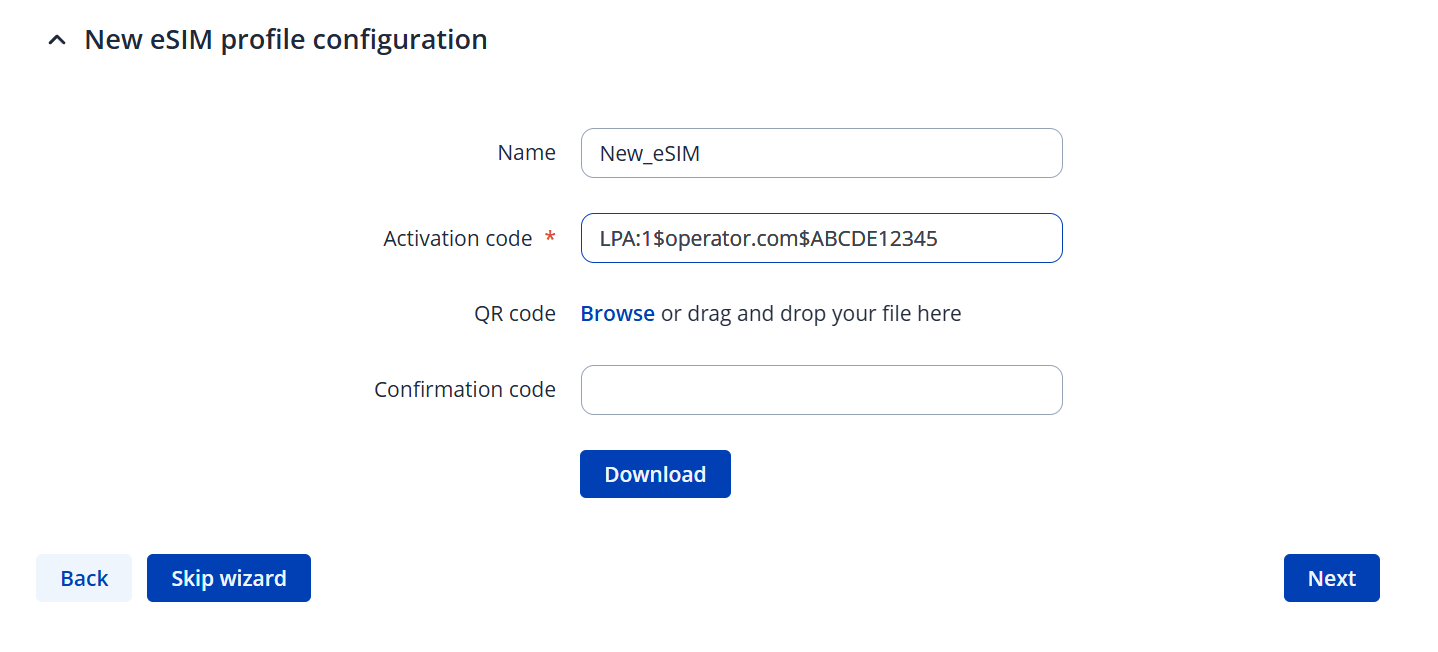
* Enter the desired eSIM Name (optional) <br> | |||
* Enter the '''Activation code''' – provided by the eSIM provider <br> | |||
'''Step 4''' - Once '''Download''' button is active press it to start the process <br> | |||
ℹ️ Profile download may take a while, depending on the connection quality. Make sure that all the Mobile antennas are attached to your device at this point. | |||
[[File:Bootstrap eSIM Guide Networks 2 v1.png|center|1100 px|link=Special:FilePath/Bootstrap eSIM Guide Networks 2 v1.png]] | |||
===Setup Complete=== | |||
---- | |||
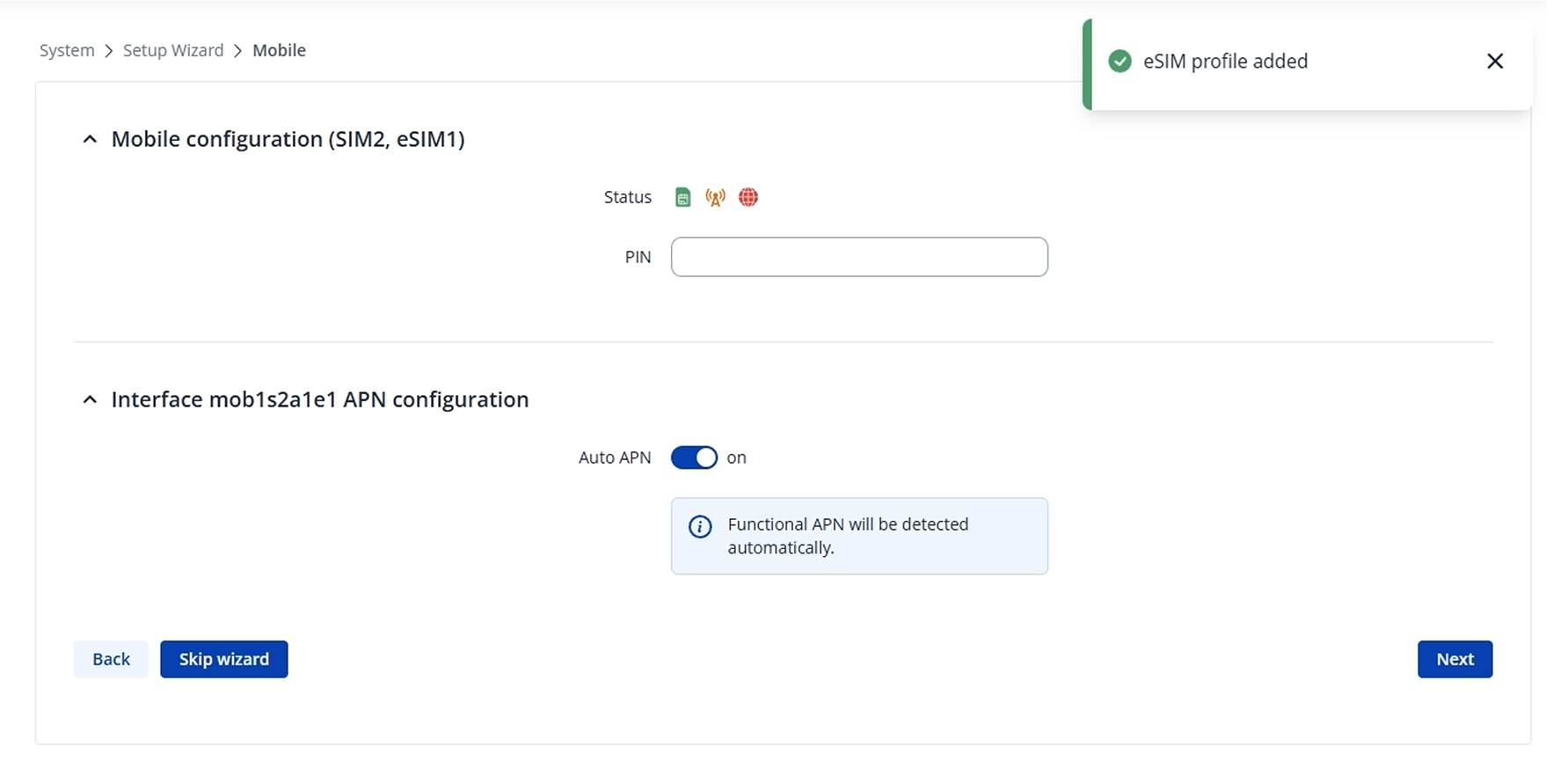
In a few moments, you will get a success message of eSIM profile added. The temporary eSIM Bootstrap was removed at this point of the setup. | |||
[[File:Bootstrap eSIM Guide Networks 3 v1.png|center|1100 px|link=Special:FilePath/Bootstrap eSIM Guide Networks 3 v1.png]] | |||
== Bootstrap Video Tutorial == | |||
<youtube width="850" height="478">q_2os99LfNo</youtube> | |||
= RMS eSIM Bootstrap profile setup guide = | |||
# Power on your device. | |||
# Add your currently offline device to your RMS profile. | |||
# Follow the steps below add a new eSIM profile using RMS. | |||
# Device will automatically switch to eSIM Bootstrap profile and will download your new eSIM profile, it may take up to one 1 hour. | |||
==Adding new eSIM profile using RMS== | |||
# Select your eSIM compatible devices. | |||
# Open actions menu [[File:Action button.png|border]] | |||
# Expand configuration submenu and click on '''eSIM configuration'''. | |||
# An eSIM configuration menu will open.<br> | |||
#* Manual - for manual eSIM profile management on single selected device only. | |||
#* From file - for configuring a list of eSIM profiles to single or multiple devices. | |||
#; Manual <br> | |||
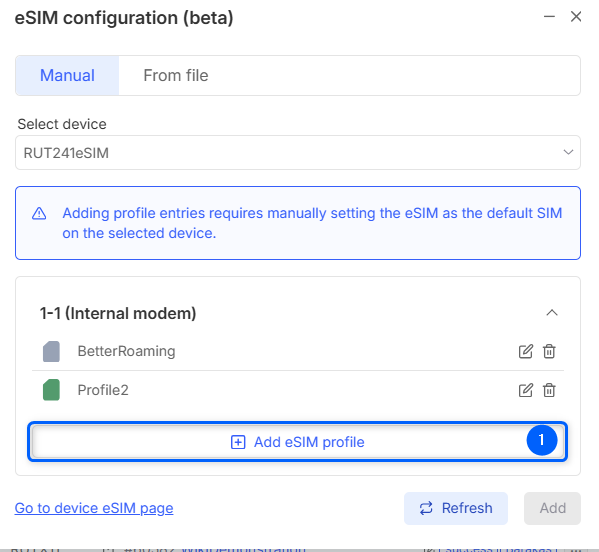
## Click '''Add eSIM profile''' to add new profile.<br><br><div style="padding-bottom:20px;">[[File:Rms esim2.png|border|600px]]</div> | |||
## Input profile name. | |||
## Input profile's activation code. | |||
## Click '''Add'''.<br><br><div style="padding-bottom:20px;">[[File:Rms esim3.png|border|600px]]</div> | |||
## New profile will show up in the list. Click '''Add''' to send this configuration to your device. <br><br><div style="padding-bottom:20px;">[[File:Rms esim4.png|border|600px]]</div> | |||
## Action status window will pop-up. You will see if it was successful, alternatively you will see an error if it failed. | |||
Latest revision as of 10:16, 9 October 2025
Information
The device with eSIM ordering code includes a preinstalled 10 MB Bootstrap eSIM profile with limited connectivity sufficient for downloading your provider’s eSIM profile and not for general Internet use.
ℹ️ To learn about Bootstrap, read the [Bootstrap guide]. For advanced eSIM setup, see the [eSIM configuration page]. For RMS-specific steps, follow How to configure eSIM profiles in RMS.
Device operations with eSIM Bootstrap
- On first start, the device runs normally — eSIM Bootstrap profile is inactive. Device automatically switches to eSIM Bootstrap profile after 1 hour.
- To start immediately, set default SIM to eSIM, and that will set eSIM Bootstrap profile as the primary SIM.
- When eSIM Bootstrap profile is active, mobile service becomes available. Download your full eSIM profile within 15 minutes; afterwards, Bootstrap profile will disable itself to conserve data.
- After the new eSIM profile is downloaded, the temporary Bootstrap eSIM profile, and all related configurations are removed, and the new eSIM becomes the primary SIM.
Note: The Bootstrap profile is valid for 1 year from the device’s manufacturing date; after it expires, activate the eSIM via the default procedure using Internet connection from other sources.
Bootstrap - eSIM Setup Guide
After logging into device WebUI for the first time, you will be greeted by a Setup Wizard. On the third step of Mobile, you will get a notification about bootstrap eSIM profile being detected.
If you skipped the Setup Wizard, you navigate to 1. System → 2. Setup Wizard → 3. Mobile.
Setup Wizard
Step 1 - Click Switch to eSIM button – to set default SIM to eSIM and to start the process
Step 2 - You will receive a confirmation message to switch to eSIM. The default SIM will be switched to an eSIM, and the SIM switch rules used for the Bootstrap profile will be disabled.

Step 3
- Enter the desired eSIM Name (optional)
- Enter the Activation code – provided by the eSIM provider
Step 4 - Once Download button is active press it to start the process
ℹ️ Profile download may take a while, depending on the connection quality. Make sure that all the Mobile antennas are attached to your device at this point.
Setup Complete
In a few moments, you will get a success message of eSIM profile added. The temporary eSIM Bootstrap was removed at this point of the setup.
Bootstrap Video Tutorial
RMS eSIM Bootstrap profile setup guide
- Power on your device.
- Add your currently offline device to your RMS profile.
- Follow the steps below add a new eSIM profile using RMS.
- Device will automatically switch to eSIM Bootstrap profile and will download your new eSIM profile, it may take up to one 1 hour.
Adding new eSIM profile using RMS
- Select your eSIM compatible devices.
- Open actions menu

- Expand configuration submenu and click on eSIM configuration.
- An eSIM configuration menu will open.
- Manual - for manual eSIM profile management on single selected device only.
- From file - for configuring a list of eSIM profiles to single or multiple devices.
- Manual
- Click Add eSIM profile to add new profile.
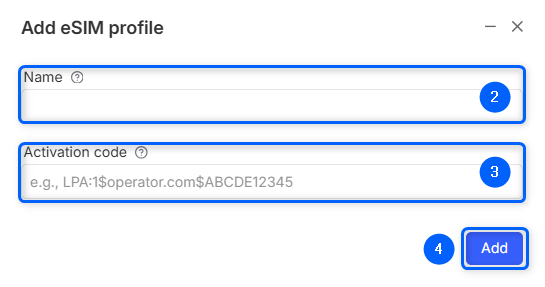
- Input profile name.
- Input profile's activation code.
- Click Add.
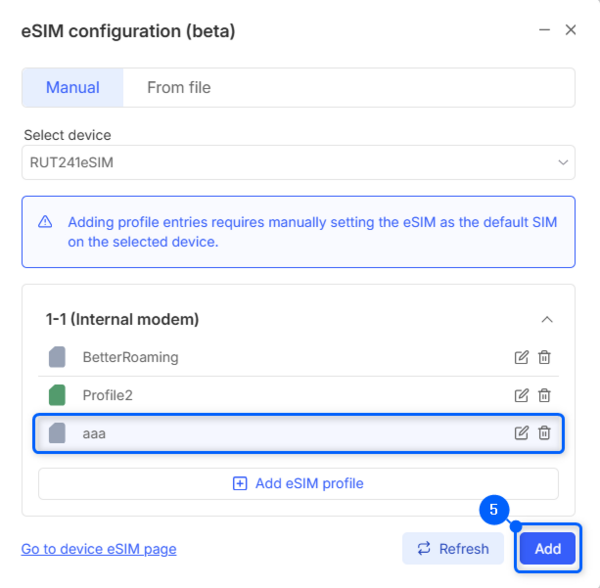
- New profile will show up in the list. Click Add to send this configuration to your device.
- Action status window will pop-up. You will see if it was successful, alternatively you will see an error if it failed.


