# Connect a USB Drive to your RUTX router and connect your computer to routers Lan using cable or wifi.
# Connect a USB Drive to your RUTX router and connect your computer to routers Lan using cable or wifi.
# [[File:Networking rutx configuration examples network share Verify usb is mounted or not.jpg|none|thumb|1076x1076px]]Login to the router's webUI, go the '''Services → USB Tools → General''' page and verify if your USB is mounted:
# [[File:Networking rutx configuration examples network share Verify usb is mounted or not.jpg|none|thumb|851x851px]]Login to the router's webUI, go the '''Services → USB Tools → General''' page and verify if your USB is mounted:
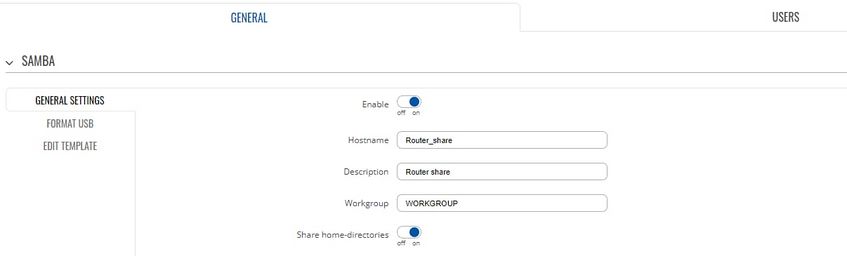
# Navigate to Network Shares and Enable it.
# Navigate to Network Shares and Enable it.
# Configure Hostname, Description, Workgroup.
# Configure Hostname, Description, Workgroup.
# Enable Share home-directories if you want to share home directories.
# Enable Share home-directories if you want to share home directories.
# Click save & apply:[[File:Networking rutx configuration examples Network share general setting.png.png|border|class=tlt-border]]
# [[File:Networking rutx configuration examples Network share general setting.jpg|none|thumb|847x847px]]Click save & apply:
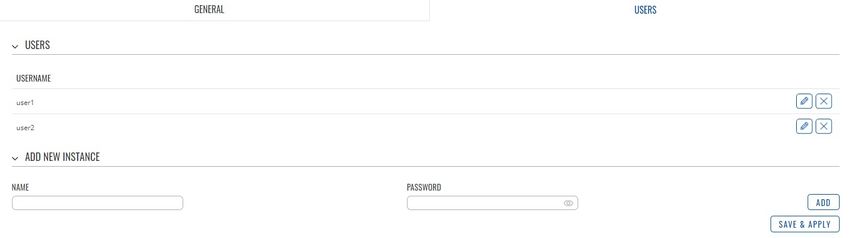
# Configure Users in Users section: click save & apply:[[File:Networking rutx configuration examples network share users.png.png|border|class=tlt-border]]
# [[File:Networking rutx configuration examples network share users.jpg|none|thumb|851x851px]]Configure Users in Users section: click save & apply:
# Go back to General tab: under Shared Directories > click ADD button, and create a directory that you want to share and select the users that you want to share directory with. Click save & apply.[[File:Networking rutx configuration examples network share add shared directories.png|border|class=tlt-border]]
# [[File:Networking rutx configuration examples network share add shared directories.jpg|none|thumb|853x853px]]Go back to General tab: under Shared Directories > click ADD button, and create a directory that you want to share and select the users that you want to share directory with. Click save & apply.
# On your PC: Open Network folder and type: “ \\192.168.1.1\netshare” in address bar.[[File:Networking rutx configuration examples network share on your pc.png|border|class=tlt-border]]
# [[File:Networking rutx configuration examples network share on your pc.jpg|none|thumb|500x500px]]On your PC: Open Network folder and type: “ \\192.168.1.1\netshare” in address bar.
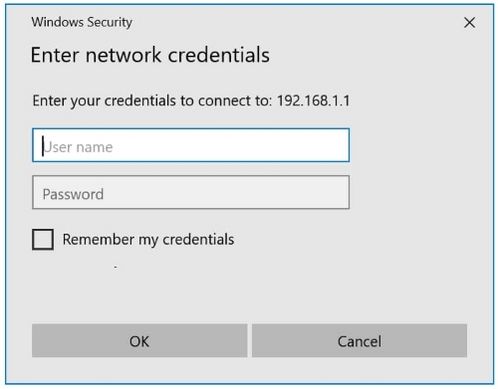
# You need to provide user name and password that were created under Network Share > Users:
# You need to provide user name and password that were created under Network Share > Users.[[File:Networking rutx configuration examples network share credentials.jpg|none|thumb|498x498px]]
This article provides information and step by step guide to configure samba share on Teltonika routers.
The information on this page is updated in accordance with RUTX_R_00.07.01.4 firmware version.
Samba share is a software package used to provide secure, stable, and fast file and print service for clients using SMB/CIFS protocol. It is compatible to use with windows and Linux systems. SMB is a network file sharing protocol and CIFS is a network file system protocol. CIFS is a successor of SMB, and both runs on tcp or udp using port 137 and 138 for udp, 039 and 445 for tcp.
Prerequisites
You will need:
RUTX router running FW version RUTX_R_00.07.01.4 or newer.
A computer running Windows OS.
A USB flash drive.
Instructions
Connect a USB Drive to your RUTX router and connect your computer to routers Lan using cable or wifi.
Enable Share home-directories if you want to share home directories.
Click save & apply:
Configure Users in Users section: click save & apply:
Go back to General tab: under Shared Directories > click ADD button, and create a directory that you want to share and select the users that you want to share directory with. Click save & apply.