
RMS Wi-Fi & Hotspots: Difference between revisions
No edit summary |
TautvydasV (talk | contribs) updates for redesign |
||
| Line 1: | Line 1: | ||
__TOC__ | __TOC__ | ||
= | =Wi-Fi & Hotspots= | ||
The | The Wi-Fi & Hotspots section is found under [[RMS Management|Management]], this section comprises of two main tabs - Wi-Fi and Hotspots. It is used to monitor data usage, users, and connected devices using said services. | ||
To monitor these services, you must first enable '''Hotspot''' or '''Wireless monitoring''' in ''' | To monitor these services, you must first enable '''Hotspot''' and/or '''Wireless monitoring''' in '''Manage monitoring templates''': | ||
#On the left sidebar navigate to ''' | #On the left sidebar navigate to '''Management → Devices'''. | ||
#Select devices you'd like to monitor | #Select devices you'd like to monitor | ||
# | #Click the Actions button | ||
#Under the '''Management''' submenu click on '''Manage monitoring templates'''. | |||
#'''Enable''' monitoring of said services and choose their update period. | #'''Enable''' monitoring of said services and choose their update period. | ||
== | #'''Apply''' the new changes. | ||
Once periodic Wireless update is enabled, you'll see a list of | ==Wi-Fi== | ||
Once periodic Wireless update is enabled, you'll see a list of Wi-Fi interfaces in the Wi-Fi tab: | |||
[[File: | [[File:RMS wif hotspot main table v1.png|border|class=tlt-border]] | ||
Here, you'll be able to: | Here, you'll be able to: | ||
#Search by Device name, filter by device model, status, company. | #Search by Device name, filter by device model, status, company. | ||
#Do various actions such as view device details, access WebUI, update device information on devices on which | #Do various actions such as view device details, access WebUI, update device information on devices on which Wi-Fi monitoring is enabled. | ||
#Monitor | #Monitor Wi-Fi interface. View its active users or view its [[RMS Wi-Fi & Hotspots#WiFi Multichart|data usage multichart]]:<br> | ||
#Change table | [[File:RMS wifi hotspot active users v1.png|border|class=tlt-border]] | ||
#Change table view and refresh the data. | |||
===Wi-Fi Multichart=== | |||
Using the chart you can view and monitor each Wi-Fi SSID usage and the amount of clients they have. | |||
[[File:RMS wifi hotspot multichart v1.png|border|class=tlt-border]] | |||
In this graph you can: | In this graph you can: | ||
#Define specific monitoring date range. | #Define specific monitoring date range. | ||
#Select specific | #Select a specific Wi-Fi SSID and its parameters. | ||
#Export chart data | #Export chart data and do a quick data refresh. | ||
#View specific details by hovering on the timeline. | #View specific details by hovering on the timeline. | ||
==Hotspots== | ==Hotspots== | ||
Revision as of 16:00, 12 March 2025
Main Page > IoT Platforms > RMS > RMS Manual > RMS Management > RMS Wi-Fi & HotspotsWi-Fi & Hotspots
The Wi-Fi & Hotspots section is found under Management, this section comprises of two main tabs - Wi-Fi and Hotspots. It is used to monitor data usage, users, and connected devices using said services. To monitor these services, you must first enable Hotspot and/or Wireless monitoring in Manage monitoring templates:
- On the left sidebar navigate to Management → Devices.
- Select devices you'd like to monitor
- Click the Actions button
- Under the Management submenu click on Manage monitoring templates.
- Enable monitoring of said services and choose their update period.
- Apply the new changes.
Wi-Fi
Once periodic Wireless update is enabled, you'll see a list of Wi-Fi interfaces in the Wi-Fi tab:

Here, you'll be able to:
- Search by Device name, filter by device model, status, company.
- Do various actions such as view device details, access WebUI, update device information on devices on which Wi-Fi monitoring is enabled.
- Monitor Wi-Fi interface. View its active users or view its data usage multichart:

- Change table view and refresh the data.
Wi-Fi Multichart
Using the chart you can view and monitor each Wi-Fi SSID usage and the amount of clients they have.
 In this graph you can:
- Define specific monitoring date range.
- Select a specific Wi-Fi SSID and its parameters.
- Export chart data and do a quick data refresh.
- View specific details by hovering on the timeline.
Hotspots
Once periodic Hotspot update is enabled, you'll see a list of hotspots in the Hotspots tab:
 Here, you'll be able to:
- Search by hotspot's SSID, device name, filter by device model, status and company.
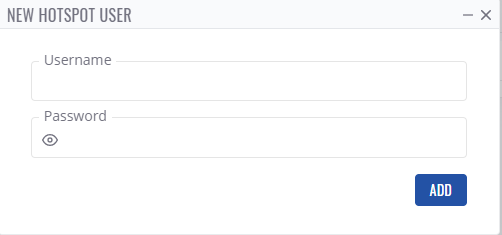
- Various actions on specific hotspot: view connected users, view all existing users, add a new user.
- Viewing connected users.

- Viewing all existing users.
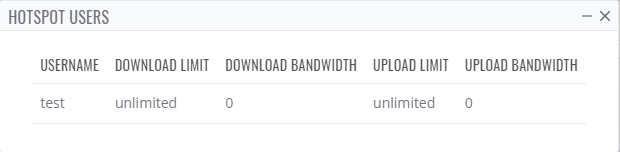
- Adding a new hotspot user.
- Viewing connected users.
- Same device actions like in WiFi list: view device details, access WebUI, update device information.
- Change table parameters and update all data


