
Template:Rms manual rms move credits: Difference between revisions
No edit summary |
No edit summary |
||
| Line 1: | Line 1: | ||
==Move RMS resources== | ==Move RMS resources== | ||
===From Companies page=== | |||
To move RMS Credits or Management/Connection data packs go to [[RMS Companies|Companies]] page under Administration section. | To move RMS Credits or Management/Connection data packs go to [[RMS Companies|Companies]] page under Administration section. | ||
[[File:Rms manual credits | #In the [[RMS Companies|Companies Page]] and click on [[File:Action button.png|border]] and select Move resources. | ||
#In Move resources action window select:<br>[[File:Rms manual credits move credits dialog v1.png|border|class=tlt-border]] | |||
## Type of resource you will be moving ( Credit / Management pack / Connect data pack). | ## Type of resource you will be moving ( Credit / Management pack / Connect data pack). | ||
##Company '''from''' which you will be moving resources. | ##Company '''from''' which you will be moving resources. | ||
##Company '''to''' which you will move the selected resource. | ##Company '''to''' which you will move the selected resource. | ||
##Amount of resources you will move. | ##Amount of resources you will move. | ||
##Click on <span style="color:#0455a4">''' | ##Click on <span style="color:#0455a4">'''Move'''</span> button to execute the action. | ||
At the top of your screen, you will get a notification: '''Move operation completed successfully'''. | |||
[[File:Rms manual credits move credits dialog v1.png|border|class=tlt-border]] | ===From Company details page=== | ||
#In the [[RMS Companies|Companies Page]] click on '''View company details''' [[File:Rmsinfo.png|16px]]. | |||
#Navigate to '''Resources''' tab and open '''Resources''' section. <br>[[File:Rms company details resources.png|border]] | |||
#Click on [[File:Action button.png|border]] and select Move resources. | |||
#In Move resources action window select:<br>[[File:Rms manual credits move credits dialog v1.png|border|class=tlt-border]] | |||
## Type of resource you will be moving ( Credit / Management pack / Connect data pack). | |||
##Company '''from''' which you will be moving resources. | |||
##Company '''to''' which you will move the selected resource. | |||
##Amount of resources you will move. | |||
##Click on <span style="color:#0455a4">'''Move'''</span> button to execute the action. | |||
At the top of your screen, you will get a notification: '''Move operation completed successfully'''. | |||
===From Resources page=== | |||
[[File:RMS Resources resources tab.png|border]] | |||
#In the [[RMS Resources|Resources Page]] and click on [[File:Action button.png|border]] and select Move resources. | |||
#In Move resources action window select:<br>[[File:Rms manual credits move credits dialog v1.png|border|class=tlt-border]] | |||
## Type of resource you will be moving ( Credit / Management pack / Connect data pack). | |||
##Company '''from''' which you will be moving resources. | |||
##Company '''to''' which you will move the selected resource. | |||
##Amount of resources you will move. | |||
##Click on <span style="color:#0455a4">'''Move'''</span> button to execute the action. | |||
At the top of your screen, you will get a notification: '''Move operation completed successfully'''. | At the top of your screen, you will get a notification: '''Move operation completed successfully'''. | ||
Latest revision as of 11:11, 26 March 2025
Move RMS resources
From Companies page
To move RMS Credits or Management/Connection data packs go to Companies page under Administration section.
- In the Companies Page and click on
 and select Move resources.
 - In Move resources action window select:
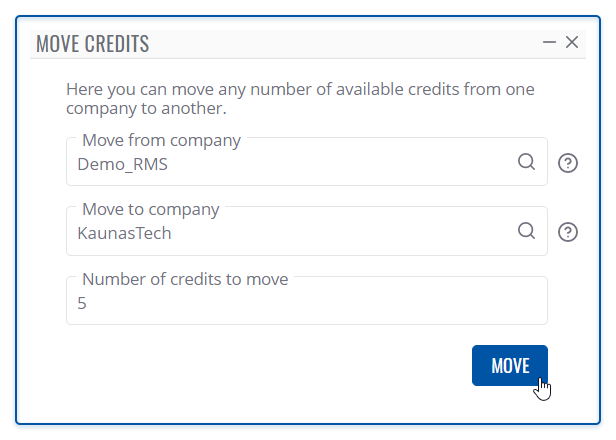
- Type of resource you will be moving ( Credit / Management pack / Connect data pack).
- Company from which you will be moving resources.
- Company to which you will move the selected resource.
- Amount of resources you will move.
- Click on Move button to execute the action.


At the top of your screen, you will get a notification: Move operation completed successfully.
From Company details page
- In the Companies Page click on View company details
 .
. - Navigate to Resources tab and open Resources section.

- Click on and select Move resources.
- In Move resources action window select:
- Type of resource you will be moving ( Credit / Management pack / Connect data pack).
- Company from which you will be moving resources.
- Company to which you will move the selected resource.
- Amount of resources you will move.
- Click on Move button to execute the action.


At the top of your screen, you will get a notification: Move operation completed successfully.
From Resources page

- In the Resources Page and click on and select Move resources.
- In Move resources action window select:
- Type of resource you will be moving ( Credit / Management pack / Connect data pack).
- Company from which you will be moving resources.
- Company to which you will move the selected resource.
- Amount of resources you will move.
- Click on Move button to execute the action.
At the top of your screen, you will get a notification: Move operation completed successfully.