
FritzBox and Teltonika WireGuard Configuration example
Introduction
This article provides a configuration example with details on how to configure a WireGuard connection between FritzBox! and Teltonika devices.
Prerequisites
- Teltonika Networks router (RUT956 will be used in this case)
- FritzBox! device
- Both devices must have WAN access with the server having a Public IP address.
- At least one end device (PC, Laptop) to configure the routers.
RUTOS device configuration
- Login to the router's WebUI, navigate to the Services → VPN → WireGuard page.
- Add a new WireGuard instance by entering custom New configuration name and clicking Add button.


- A configuration window should appear. Configure the WireGuard instance accordingly:
- Enabled - on.
- Private key - Taken from the file generated by the FritzBox!
- Public key - Not required in this configuration, therefore should be empty.
- IP addresses - In this example. we're putting 192.168.10.2/32 which will be an IP address of the WireGuard tunnel. Ensure that this is in the same subnet as the RUTs LAN network.
Peer Configuration
- Now we'll create a peer (FritzBox) connection so the tunnel can be established.

- Add new instance - Enter any name you'd like to call your Peer
- Press on "Add"

- Configure the peer settings accordingly:
- Public Key - Taken directly from the FritzBox, see image below.
- Endpoint host - Is also taken directly from the FritzBox, see image below.
- Allowed IP's - In this example. we're putting 192.168.1.0/24 which is the FritzBox LAN subnet
- Route allowed IPs - on.

- Head to the Advanced Settings tab, and add the Endpoint Host port, also taken from the generated WireGuard configuration file. In our case, it is 52109
- First we'll create a WireGuard instance. To create a WireGuard interface, access the WebUI of your FritzBox device and navigate to Internet → Permit Access → Click on the VPN (WireGuard) tab and click on Add Connection button.
- Follow the WireGuard Wizard accordingly:
- "Which WireGuard connection would you like to set up" section - Choose "Connect networks or establish special connections"
- Specify User-defined settings section
- "Create a Connection for a Router with Support for WireGuard" section
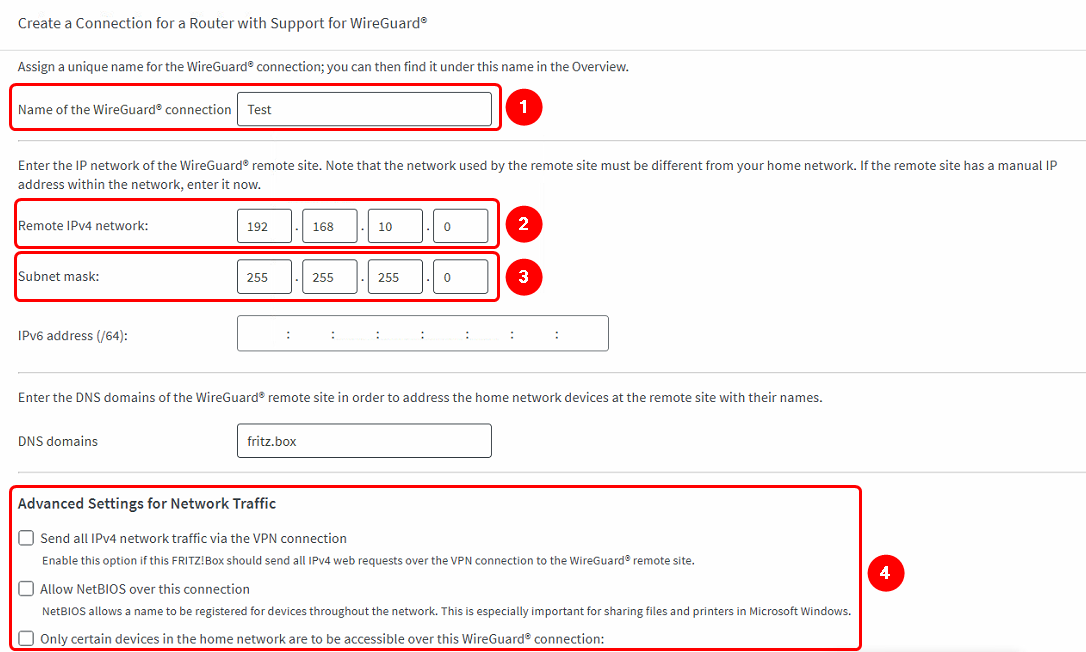
- Configure these options accordingly
- Name of the WireGuard connection - Any, the choice is yours.
- Remote IPv4 network - We're gonna use 192.168.10.0 - needs to be the subnet of the RUTs LAN.
- Subnet mask - 255.255.255.0
- Advanced settings for Network Traffic - Leave all unchecked, unless an option from the list is required for your setup

FritzBox configuration


Testing Configuration
First, try pinging the RUT LAN from your PC (while being connected to the FritzBox!):
 Next, try to ping an end device on the RUTs LAN (if you have one connected):
 Finally, view your active FritzBox Wireguard connections and see if you have a green bubble, indicating that the connection is working:
