
Template:Rms manual files config files add new config: Difference between revisions
No edit summary |
No edit summary |
||
| Line 11: | Line 11: | ||
* Click the "[[File:Choose file icon.png|16px]] Choose a file..." button, select the config file that you wish to add from your computer and click "Upload": | * Click the "[[File:Choose file icon.png|16px]] Choose a file..." button, select the config file that you wish to add from your computer and click "Upload": | ||
[[File:How to upload config to rms part 2 | [[File:How to upload config to rms part 2 v3.png]] | ||
---- | ---- | ||
* If the config file was uploaded successfully, you will see a success indication message and the config file will appear in the config table: | * If the config file was uploaded successfully, you will see a success indication message and the config file will appear in the config table: | ||
[[File:How to upload config to rms part 3 v1.png]] <br> [[File:How to upload config to rms part 4 v1.png]] | [[File:How to upload config to rms part 3 v1.png]] <br> [[File:How to upload config to rms part 4 v1.png]] | ||
Revision as of 08:38, 15 May 2018
- To upload a config file, you must first obtain one by downloading it from the router's WebUI or if that router is added to RMS, you can download from there (instructions provided below)
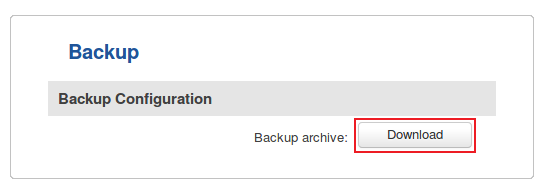
- From router's WebUI: navigate to System → Administration → Backup and download the backup file:
- From RMS: while in the Management tab place a check mark next to the device whose configuration you want to download:

- Scroll your mouse pointer to the Configuration submenu (Management → Configuration) and click "Download":

- Scroll your mouse pointer to the Configuration submenu (Management → Configuration) and click "Download":
- From router's WebUI: navigate to System → Administration → Backup and download the backup file:


- Go to the Files tab, scroll your mouse pointer to the File submenu (Files → Config files → File) and click "Add New":

- Click the "
 Choose a file..." button, select the config file that you wish to add from your computer and click "Upload":

File:How to upload config to rms part 2 v3.png

- If the config file was uploaded successfully, you will see a success indication message and the config file will appear in the config table:

