
FAQ
General Questions
How do I find information on this Wiki?
- You can find basic information in the General Information page and you can find answers to some of the most frequently asked question in this FAQ page.
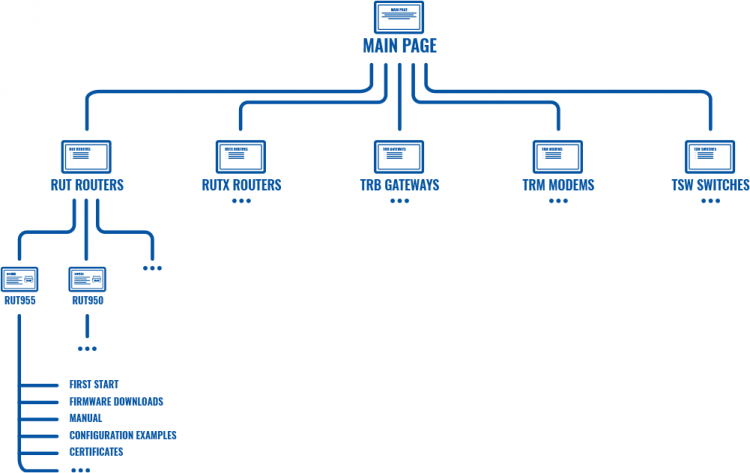
To find specific information related to your device, follow a path such as this from the Wiki's home page:
Main Page → Device series → Device name → Information...
For example:
Main Page → RUT Routers → RUT955 → RUT955 Manual
The Wiki is structured like this (click 'Expand' to see the image):

Where can I download the latest firmware version?
- You can find all firmware file download links in the FW & SDK Downloads page. You can also find 'Firmware Downloads' for all devices in their respective Wiki pages. Example path:
Main Page → RUT Routers → RUT955 → RUT955 Firmware Downloads
How do I contact technical support?
- If you have encountered a software/firmware related issue, you can get in touch with Teltonika-Networks technical support via:
- HelpDesk - you can register your question on Teltonika's internal HelpDesk system. If you don't have access to the HelpDesk, your sales manager can create an account for you.
- Sales Manager - your sales person can relay technical questions to Teltonika's support team.
- Crowd-Support Forum - a public forum for Teltonika-Networks related questions.
- Hotline - Teltonika customer support is also reachable through a variety of different phone numbers. The support is in English or Lithuanian only:
- US: +1 640 650 2356
- Lithuania: +370 37 211202
- United Kingdom: +44 20 3869 2377
- Singapore: +65 3158 1242
- Germany: +49 89 62828927
- India: +91 44 4342 2670
How do I input a SIM card's PIN code on my device?
- Connect to the device’s WebUI
- Navigate to Network -> Mobile -> General
- Input Your SIM card’s PIN in the “PIN” field
- Press “Save & Apply” More information: RUTX14 Mobile
I have a broken device. What should I do?
- Please evaluate if your device is eligible for warranty by checking the guidelines described in the RMA page.
- If you do suspect a hardware malfunction, please fill out HelpDesk ticket and read our warranty policy for more details.
- Software issues are not covered by Teltonika-Networks' warranty policy. Therefore, if you have encountered an issue related to a device's software/firmware, you should contact Teltonika-Networks technical support (refer to the question above for related information).
My device seems functional, but I cannot access it. What should I do?
- If you're having trouble with your device, LED behaviour may provide some insight into what's happening and what steps should be taken next. Look for your device's LED info in the LEDs page.
- If you still can't reach the device using conventional methods, you may need to perform a reset to factory settings. Please refer to the Device Recovery Options page for information on that.
What is a Troubleshoot file and how do I download it?
- A Troubleshoot file contains a device's event logs, configuration files and other info useful for diagnostics. It can be downloaded from your device's WebUI, Troubleshoot page:
System → Maintenance → Troubleshoot
If you have encountered an issue and plan on contacting technical support, it is usually a good idea to include a Troubleshoot file along with a description of the issue. Doing this can speed up the support process significantly.
Which Teltonika-Networks device meets my requirements?
- It depends on where the device will be used. Refer to links below for help in finding a device that meets the necessary requirements of your solution.
- Product list - contains the full list of Teltonika-Networks products.
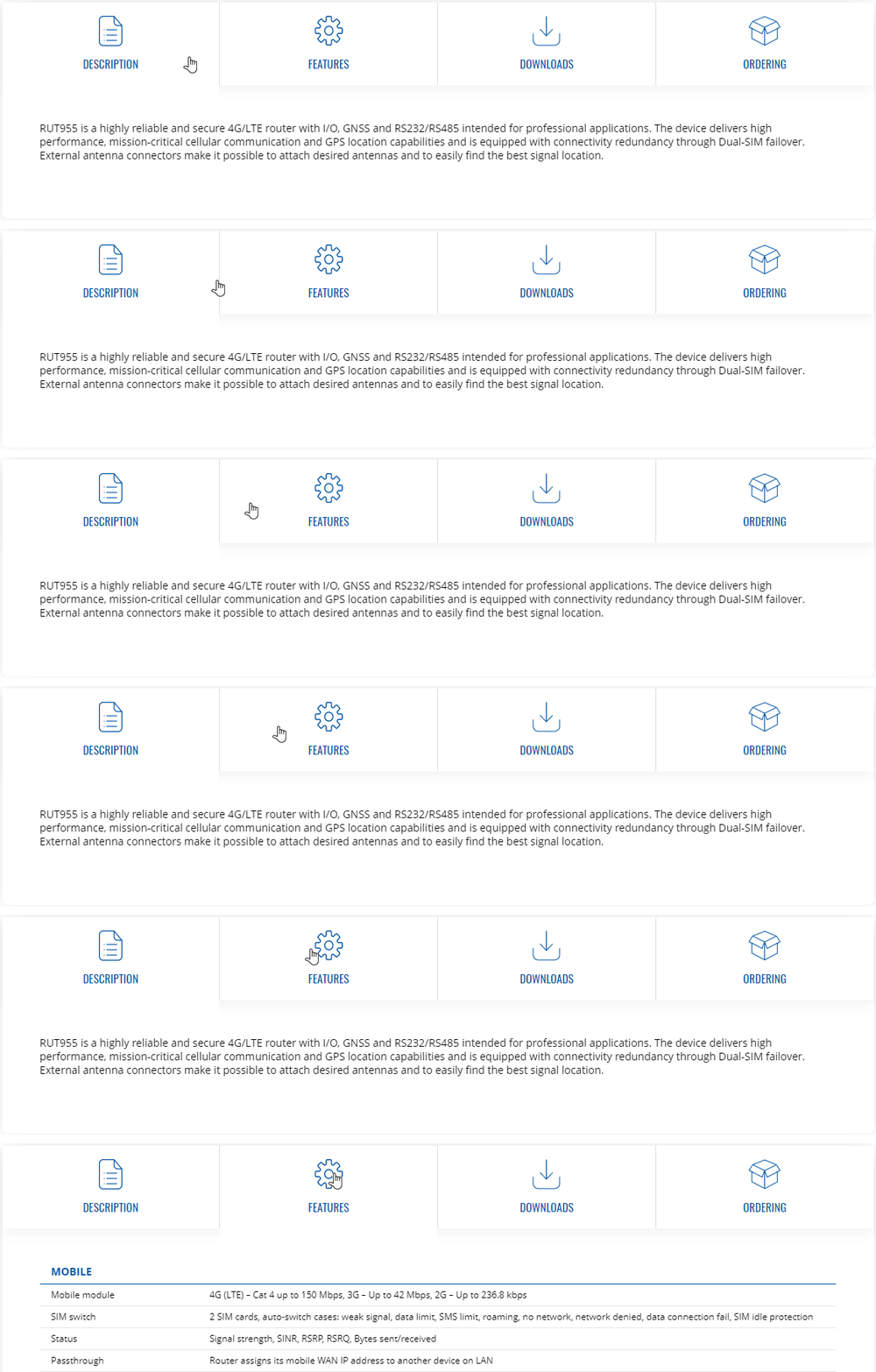
- Feature lists - comprehensive feature lists for each device can be found by clicking on a product in the list and opening its "Features" section (click 'Expand' to see an example)
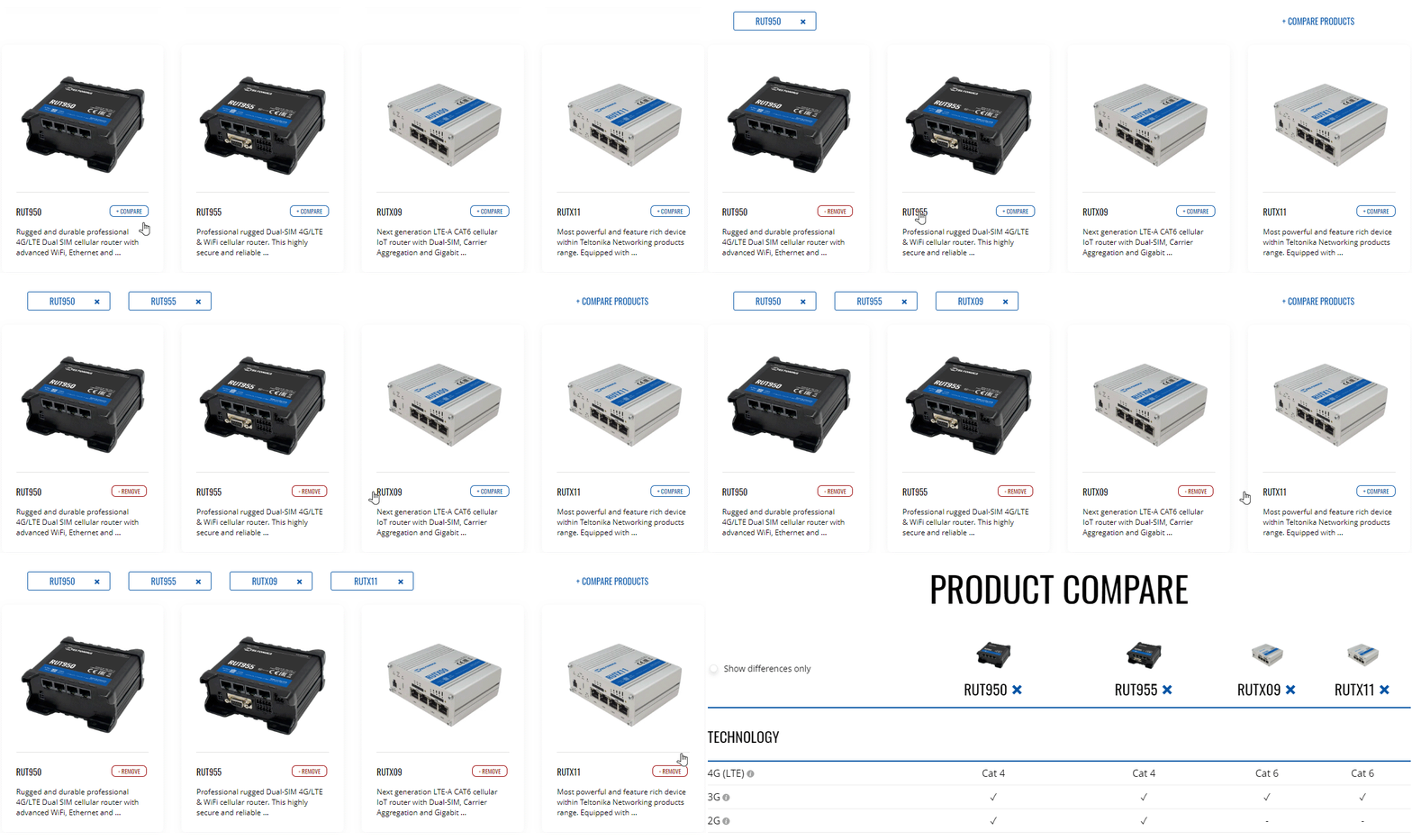
- Product compare - a feature of the Teltonika-Networks website that allows you to make direct product comparisons. Simply click the '+ Compare' button next to products that wish to consider and click '+ Compare Products' in the top-right of the page to generate a comparison (click 'Expand' to see an example)


Why is my router slower than my phone?
- Modern phones support faster LTE technologies than most Teltonika-Networks devices as they are made and used for different purposes. Most of the speed discrepancies are due to carrier aggregation (CA). To see how CA and other factors can affect LTE speeds, please refer to the LTE Speed Discrepancies page.
I'm looking for information on product accessories. Where can I find it?
- All Teltonika-Networks product accessory information is in the Product Accessories page and our website.
How much power does my device use?
- Power usage measurement results for all devices can found in the Power Consumption page.
Where can I find all the available certificates for Teltonika Networks devices?
- A table of all available certificates and certification information can be found in the certificates page.
Where do I find Teltonika device default login credentials?
- Currently, the default login name is admin and passwords are generated randomly.
- They are typically found on the sticker or engraving located at the bottom of the device.
An illustration of this is:

- If the device was released in earlier batches, utilize these credentials:
username: admin
password: admin01
How can I restart RUT/TRB device's particular service via SSH?
- On the RUT/TRB devices, it is available to restart a particular service by executing command in the router's Secure Socket Shell (SSH).
- SSH is a network protocol that gives users, particularly system administrators, a secure way to access the device.
- To see how a particular service is named please type ls /etc/init.d command in SSH.
- Here is the example of listed files that are located on init.d directory

- For example in order to restart OpenVPN service you have to specify directory location and add command "restart".
- Example: /etc/init.d/openvpn restart
- After you execute this command your service is immediately restarted. Also, you can use start/stop commands which accordingly start or stop service.
- Example: /etc/init.d/firewall stop

- Link to the instruction of how to use Command Line Interfaces: Command_Line_Interfaces
- Link to the instruction of UCI command usage: UCI_command_usage
How can I install packages on my device?
- Some packages, which are not as commonly used, are excluded from firmware files in order to save the device flash memory space.
- You can install these packages using either Package Manager in WebUI or using opkg CLI command.
- To install a package using Package Manager, simply login to routers WebUI and navigate to Services → Package Manager → Packages
- You can either select a package from the list or use search bar located on the upper right corner of the screen.
- Once required package is found, press '+' button to install.
- Additionally, if the device does not have internet connectivity, package files for specific device firmware version could be downloaded on our wiki from here and uploaded offline by navigating to Services → Package Manager → Upload
- If a package is unavailable in package manager or installation through command line interface is required - opkg command can be used.
- Before using opkg, source list must be updated using the following command: opkg update
- To list all available packages use the following command: opkg list
- To install a package use the following syntax: opkg install <PACKAGE_NAME>
- For example to install DNP3 package: opkg install dnp3
- You can find the newly installed Teltonika Networks devices packages configuration section in the device WebUI at Services → <PACKAGE_NAME>.
- Note: Since the RutOS operating system is based on Linux OpenWRT, it is possible to install additional packages from OpenWRT using OPKG. However, please note that some of those packages might not have WebUI support and might not work as intended.
What are the differences between RUT2xx series devices?
The RUT2xx series is comprised of several compact cellular routers with similar form factors and core networking functionality. The devices mainly differ in cellular technology, physical interfaces, and some additional features.
The main differences are:
| Device | Cellular technology | Main differences |
|---|---|---|
| RUT200 | LTE Cat 4 | Basic single-SIM cellular router |
| RUT202 | LTE Cat 4 | Dual SIM |
| RUT204 | LTE Cat 4 | Dual SIM, RS232, microSD, GNSS and CAN |
| RUT206 | LTE Cat 4 | Dual SIM, RS232, RS485 and microSD |
| RUT241 | LTE Cat 4 | Newer cellular module, available in an eSIM version |
| RUT260 | LTE Cat 6 | Higher LTE category with carrier aggregation |
| RUT261 | LTE Cat 6 | Higher LTE category, additional flash memory |
| RUT271 | 5G RedCap | 5G RedCap connectivity in a compact form factor |
| RUT276 | 5G RedCap | 5G RedCap, Dual SIM, RS232, RS485 and microSD |
| RUT281 | Global LTE Cat 4 | Global mobile connection technology supporting a large number of frequency bands |
| RUT286 | Global LTE Cat 4 | Global LTE Cat 4, dual SIM, RS232, RS485 and microSD |
If you are curious about which one to choose:
- RUT200 - Suitable for a compact, basic cellular router
- RUT202 - Suitable for applications where dual SIM cards are required for mobile network failover.
- RUT204 - Suitable for applications that require dual SIM together with RS232, GNSS, and CAN or microSD functionality.
- RUT206 - Suitable for industrial applications that require dual SIM and serial interfaces such as RS232 and RS485.
- RUT241 - Suitable for a compact LTE Cat 4 router with a newer cellular module and an eSIM option.
- RUT260 - Suitable when higher LTE performance and/or carrier aggregation are required.
- RUT261 - Suitable when higher LTE performance and additional flash memory for packages are required. Contains a newer cellular module.
- RUT271 - Suitable for a compact installation requiring 5G RedCap connectivity.
- RUT276 - Combines 5G RedCap connectivity with dual SIM functionality, RS232, RS485 and microSD, making it suitable for industrial applications that require higher data throughput.
- RUT281 - A global LTE Cat 4 model, suitable for deployments across multiple regions.
- RUT286 - A global LTE Cat 4 model with dual SIM and industrial interfaces, suitable for deployments across multiple regions and industrial applications requiring serial connectivity.
Some RUT2xx models are of a newer hardware generation. These include the RUT202, RUT204, RUT206, RUT276 and RUT286. These newer models extend the capabilities of the original compact routers. While all of them have an aniodised aluminium housing, aluminium panels and also add dual SIM functionality, the other additional features differ but are not limited to: serial interfaces, GNSS and CAN.
Dual SIM allows the router to use two SIM cards and switch between them according to the configured failover settings. This helps improve connection stability and uptime.
Serial interfaces such as RS232 and RS485 allows the router to communicate with industrial equipment that uses serial communication, such as programmable logic controllers (PLCs) or programmable automation controllers (PACs).
The RUT204 additionally offers GNSS and CAN functionality, catering it more toward applications where vehicle or equipment location and CAN bus data may need to be collected or transmitted.
Some model pairs, such as the RUT200 and RUT241 as well as the RUT260 and RUT261, have very minimal differences aside from a slightly newer mobile module. Both device pairs offer the same core technology, but use different releases of 3GPP cellular communication technologies. The RUT200 uses 3GPP Release 9, while the RUT241 uses 3GPP Release 10/11. Likewise, the RUT260 uses 3GPP Release 10/11, while the RUT261 uses 3GPP Release 12.
3GPP (3rd Generation Partnership Project) develops the technical standards used by cellular technologies such as 3G, LTE, and 5G. These standards are published in numbered releases, with newer releases introducing some additional features and capabilities. A newer 3GPP release does not necessarily mean higher network speeds, as performance also depends on the device's LTE/5G category, supported bands, carrier aggregation, signal conditions and the mobile operator's network.
The 3GPP release differences between the devices primarily reflect the generation of the cellular modem used in each device rather than major differences in performance quality.
These devices belong to different product generations and may also differ in supported frequency bands, mobile operators, cellular modules, certifications and other regional differences. When selecting a device, always check the technical specifications and certifications that pertain to the exact model and order code for your deployment.
You can find more detailed information about all available RUT200, RUT202, RUT204, RUT206, RUT241, RUT260, RUT261, RUT271, RUT276, RUT281, and RUT286 certificates here.
You can learn more about the RUT2xx series device differences on our website.
What are the differences between RUT9xx series devices?
The RUT9xx series is comprised of medium form factor industrial cellular routers with four Ethernet ports, two Wi-Fi antennas and dual SIM support across the series. The main differences between the models are their cellular technology, regional mobile technology and frequency band support as well as the physical interfaces provided.
The main differences are:
| Device | Cellular technology | Main differences |
|---|---|---|
| RUT901 | LTE Cat 4 | Basic RUT9xx model |
| RUT906 | LTE Cat 4 | RS232, RS485, GNSS, USB, I/O terminal block and microSD |
| RUT951 | LTE Cat 4 | Newer cellular module successor to the RUT901; same core functionality |
| RUT951 PoE+ | LTE Cat 4 | RUT951 functionality with active PoE In and PoE Out |
| RUT956 | LTE Cat 4 | Newer cellular module successor to the RUT906; RS232, RS485, GNSS, USB, I/O Terminal block and microSD |
| RUT976 | 5G RedCap | RUT956 industrial interfaces with 5G RedCap connectivity and increased flash memory |
| RUT981 | Global LTE Cat 4 | RUT951 functionality with a Global 4G modem |
| RUT986 | Global LTE Cat 4 | RUT956 functionality with a Global 4G modem |
All RUT9xx models are also available in an eSIM version.
If you are curious about which one to choose:
- RUT901 - Suitable for a straightforward LTE Cat 4 router with the standard RUT9xx feature set.
- RUT906 - Suitable for when you need industrial interfaces such as RS232, RS485, geolocation technology, digital I/O and/or storage expansion via USB or microSD in addition to LTE connectivity.
- RUT951 - Suitable for a straightforward LTE Cat 4 router with the standard RUT9xx feature set and a newer-generation hardware platform.
- RUT951 PoE+ - Suitable for when you need the functionality of the RUT951 together with active PoE In and PoE Out.
- RUT956 - Suitable for when you need the interfaces, geolocation technology and storage expansion offered by the RUT906 on a newer-generation hardware platform.
- RUT976 - Suitable for when you need the industrial interfaces of the RUT956 together with 5G RedCap connectivity.
- RUT981 - Suitable for when you need the core functionality of the RUT951 with a Global LTE Cat 4 modem for deployments across multiple regions, requiring broader cellular compatibility.
- RUT986 - Suitable for when you need the industrial interfaces of the RUT956 with a Global LTE Cat 4 modem for deployments across multiple regions, requiring broader cellular compatibility.
Some model pairs, such as the RUT901 and RUT951 as well as the RUT906 and RUT956, have very minimal differences aside from a slightly newer hardware generation. Both device pairs offer the same core technology and interfaces, but use different releases of 3GPP cellular communication technologies. The RUT901 uses 3GPP Release 9 while the RUT951 uses 3GPP Release 10/11. Likewise, the RUT906 uses 3GPP Release 10/11 while all hardware versions of the RUT956 use exclusively 3GPP Release 11.
3GPP (3rd Generation Partnership Project) develops the technical standards used by cellular technologies such as 3G, LTE, and 5G. These standards are published in numbered releases, with newer releases introducing some additional features and capabilities. A newer 3GPP release does not necessarily mean higher network speeds, as performance also depends on the device's LTE/5G category, supported bands, carrier aggregation, signal conditions and the mobile operator's network.
The 3GPP release differences between the RUT901/RUT951 and RUT906/RUT956 primarily reflect the generation of the cellular modem used in each device rather than major differences in performance quality.
Additionally, every RUT9xx model is available in an eSIM version. The eSIM versions provide eSIM functionality on top of the core features of the respective device model.
As with other devices, supported frequency bands, certifications and regional availability can vary depending on the exact model and order code. Always check the technical specifications and certifications for the device intended to be used for your setup.
You can find more detailed information about all available RUT901, RUT906, RUT951, RUT951 PoE+, RUT956, RUT976, RUT981, and RUT986 certificates here.
You can learn more about the RUT9xx series device differences on our website.
How can I set a custom APN?
- On Teltonika Networks cellular devices, the Auto APN setting is enabled by default. You could find information about how Auto APN works here.
- If you would like to change APN to a custom setting, navigate to Network → Interfaces → Mobile and click the Edit button.
- After you click the Edit button settings window will appear. In the General Settings section click on the Auto APN toggle to turn it off.
- From the APN list select –Custom--.
- In the Custom APN section write the custom APN name.
- Once done, click Save & Apply.
- More information on where to configure APN could be found here.
What device telemetry data is collected by Teltonika Networks?
Following table shows what non-personal telemetry data Teltonika Network collects via FOTA service.
| Collected data | Who uses it | For what purpose | Requires Data analitics enabled by user |
|---|---|---|---|
| Device Serial No. | Teltonika Networks | Exclusively for proper functioning of FOTA service. | Yes |
| MAC | Teltonika Networks | Exclusively for proper functioning of FOTA service. | Yes |
| Modem ID | Teltonika Networks | Exclusively for proper functioning of FOTA service. | No |
| Modem IMEI | Teltonika Networks | Exclusively for proper functioning of FOTA service. | Yes |
| Modem Firmware Version | Teltonika Networks | Exclusively for proper functioning of FOTA service. | No |
| Device Firmware Version | Teltonika Networks | Exclusively for proper functioning of FOTA service. | No |
| Device Product Code | Teltonika Networks | Exclusively for proper functioning of FOTA service. | No |
| Enabled Services | Teltonika Networks | Exclusively for proper functioning of FOTA service. | Yes |
| Firmware update logs | Teltonika Networks | Exclusively for proper functioning of FOTA service. | No |
| Modem update logs | Teltonika Networks | Exclusively for proper functioning of FOTA service. | No |
| Access logs | Teltonika Networks | Exclusively for proper functioning of FOTA service. | No |
- Q: Is there any personal data being collected?
- A: No
Why do the RUTX12, RUTX14, RUTX50, and TRB500 models feature varying numbers of main and AUX mobile antennas?
- The RUTX12, RUTX14, RUTX50, and TRB500 models feature different configurations of main and AUX mobile antennas due to variations in their mobile modules and modem architectures.
- The RUTX12 is distinctive for housing two CAT6 LTE mobile modules, each demanding one main and one AUX mobile antenna. These antennas can individually achieve speeds of up to 300 Mbps without bonding.
- In contrast, the RUTX14 comes equipped with an LTE CAT 12 mobile module capable of reaching speeds of up to 600 Mbps independently. To optimize its performance, it requires one main and three AUX mobile antennas.
- On the other hand, both the RUTX50 and TRB500 boast new 5G mobile modules. However, their modem architectures necessitate different antenna configurations. The RUTX50 requires four main mobile antennas to attain speeds of 3.3 Gbps, while the TRB500, due to comparatively weaker hardware, requires only one main mobile antenna to achieve speeds of 1 Gbps.
What is the difference between managed and unmanaged switches?
- Unmanaged switches are plug-and-play devices without an operating system or configuration options. They cannot be used to control ports, VLANs, security, or traffic policies.
- Managed switches run on our TSWOS operating system, which provides advanced management features like route control, VLAN configuration, Power over Ethernet (PoE) management, Quality of Service (QoS), L2, and some L3 (excluding firewall, NAT capabilities), layer support, and more. They offer greater flexibility, scalability, and control, making them suitable for complex business or enterprise networks.
- Currently, only 5 switches in our portfolio have management capabilities: TSW202, TSW212, SWM280, SWM281, and SWM282.
What is the difference between a router and a gateway?
A Router is designed to direct data packets between devices on the same or similar networks, while a gateway is purely a bridge between two separate networks, like a small network and the internet.
Both of Teltonika's routers and gateways run on RutOS, but are suited for different needs:
- Routers typically have more Ethernet ports and Wi-Fi capabilities, while gateways usually have only one Ethernet port, although some gateways don't even have any Ethernet interface, like the TRB141, TRB142 and the TRB145
- Teltonika routers can have an LTE modem or not. Those modems are typically for general-purpose mobile connectivity, while our gateways always come with a mobile modem, some of which are specifically designed for low-speed IoT connectivity, like the TRB236, TRB247 and the TRB256.
- A router is designed to manage a network of multiple devices (such as a home or business network), while a gateway is better suited to one or a few devices.
- Both types of devices can provide NAT translation, firewall rules and VPN connectivity for their networks.
More information on our routers, gateways, and other products can be found on our website: Teltonika Networks products